Bolt + Supabase
 SupabaseBolt
How do I move a Bolt app's database, auth users and storage to my own Supabase project?
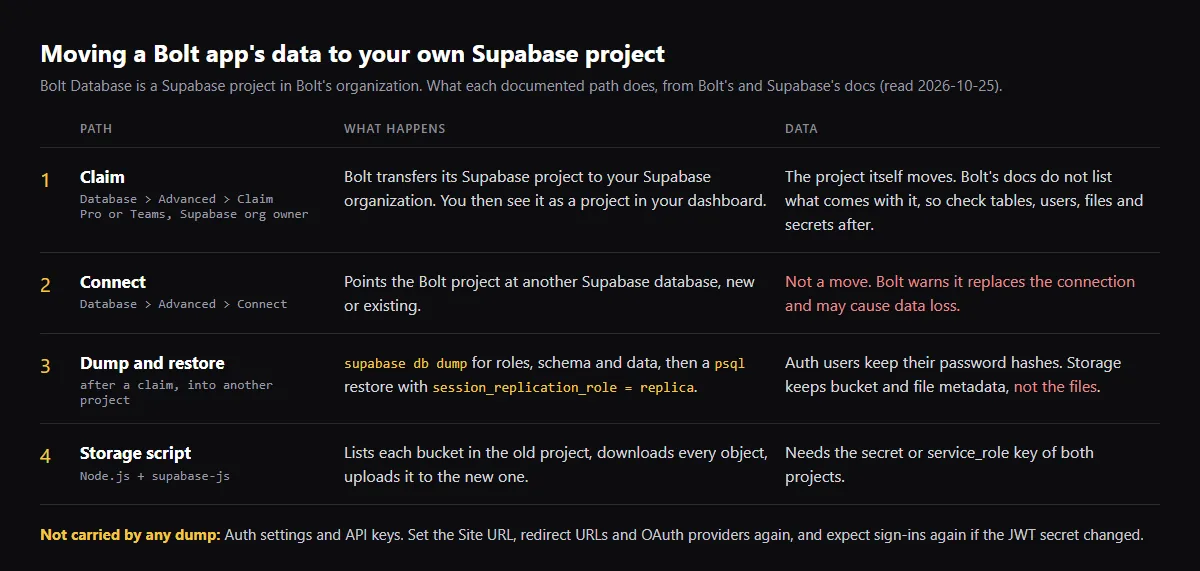
To move a Bolt app to your own Supabase project, claim its Bolt Database rather than connecting a new one: Bolt Database runs on a Supabase project owned by Bolt's organization, and on a Pro or Teams plan, Claim (Database icon, Advanced) transfers that project to your Supabase organization. Connect is not a move: Bolt warns that connecting a Supabase database replaces the connection and may cause data loss. Bolt's docs do not list what a claim carries, so check the tables, auth users, storage files and function secrets in Supabase afterwards. To copy the claimed project into another one, Supabase documents supabase db dump for roles, schema and data and a psql restore; auth users keep their password hashes, and storage files need a separate copy script. Checked against Bolt's and Supabase's docs on 2026-10-25.
Still deciding where to build? See how Lovable and Bolt compare on ownership.
Claim vs Connect
Both are under the Database icon, on the Advanced tab, on Pro or Teams, after you connect your Bolt account to one Supabase organization from the Applications settings. Claim transfers the existing project, and you must be an owner of that Supabase organization. Connect points the project at a different Supabase database, new or existing, and does not copy the Bolt data. There is no supported flow back from Supabase to a Bolt database.
Copy a Supabase project into another one
Once the project is in your organization, Supabase's backup and restore guide copies it with the Supabase CLI, Docker and psql. Take the connection string from Connect in the old project's dashboard, and enable any extensions and database webhooks on the new project first:
supabase db dump --db-url "$OLD_DB_URL" -f roles.sql --role-only
supabase db dump --db-url "$OLD_DB_URL" -f schema.sql
supabase db dump --db-url "$OLD_DB_URL" -f data.sql --use-copy --data-only -x "storage.buckets_vectors" -x "storage.vector_indexes"

psql \
  --single-transaction \
  --variable ON_ERROR_STOP=1 \
  --file roles.sql \
  --file schema.sql \
  --command 'SET session_replication_role = replica' \
  --file data.sql \
  --dbname "$NEW_DB_URL"
Auth users and sessions
Supabase says the auth schema migrates with users and their hashed passwords, so nobody has to reset a password. Sessions do not carry over the same way: with a new JWT secret, existing tokens become invalid and users sign in again. Auth settings and API keys are not stored in the database, so set the Site URL, redirect URLs and each OAuth provider in the new project; Google's authorized redirect URI must be the new project's callback URL.
Storage files
A restore brings the buckets and file metadata, which then show in the new dashboard, but not the files themselves. Supabase's guide gives a Node.js script that lists each bucket in the old project, downloads every object and uploads it to the new one, with the secret or service_role key of both. Bolt cannot show or export individual files, so claim first.
Point the app at the new project
Bolt's database docs name the variables VITE_SUPABASE_URL and VITE_SUPABASE_ANON_KEY; check which names your own export reads, since Supabase's current React quickstart names the key VITE_SUPABASE_PUBLISHABLE_KEY. Bolt deployed server functions for you, and off Bolt you link the CLI and deploy them, with their secrets, yourself:
supabase link --project-ref "$NEW_PROJECT_REF"
supabase functions deploy
supabase secrets set --env-file .env
Before you start
Duplicating a Bolt project copies the schema, not the data, and restoring an earlier Bolt version does not change the database. Bolt may pause the database of an unpublished project after six days of low use. If you only need some rows, Bolt exports selected rows of a table as CSV or JSON.
Checklist
Move a Bolt app to your own Supabase project
- 01Confirm a Bolt Pro or Teams plan, and that you own the Supabase organization you will claim into.
- 02Connect Bolt to that Supabase organization, then claim the database from the Database icon, Advanced tab.
- 03In Supabase, confirm the tables, auth users, storage files and function secrets are there.
- 04To copy into another project, dump roles, schema and data, restore them with psql, then run the storage migration script.
- 05Set the Site URL, redirect URLs and OAuth providers in the new project, and expect users to sign in again if the JWT secret changed.
- 06Update the Supabase URL and key variables your app reads, redeploy the functions and secrets, then sign up as a new user on the live URL.
Related
Related guides


Sources
Official docs behind this checklist
- Bolt, Supabase integration
- Bolt, Bolt Database
- Bolt, Database advanced settings
- Bolt, File storage
- Bolt, Tables
- Bolt, Server functions
- Bolt, Introduction to databases
- Supabase, Backup and restore using the CLI
- Supabase, Migrating auth users between projects
- Supabase, Restore a dashboard backup
- Supabase, Project provisioned via Bolt not visible in the dashboard
- Supabase, Redirect URLs
Browse all launch guides · Read resources · How to make and check your next change
FAQ
FAQ for builders before launch
Do users need to reset their passwords after the move?
No. Supabase says migrated auth users keep their hashed passwords. They sign in again if the new project uses a different JWT secret.
Can I export a full SQL dump from Bolt?
Bolt's docs describe CSV or JSON export of selected table rows and a SQL editor, not a full dump. For a full copy, claim the project and use supabase db dump.